Linking campaigns
Last updated May 4, 2026
When an influencer's email address in your campaign table matches an incoming email, Bondr automatically links them. The campaign name, status, and assignee appear directly on the thread — no manual setup needed.
Automatic matching
The influencer table inside each campaign has system columns such as Email, Name, and Status that are created automatically. System columns are default columns connected to Bondr's core features, and they cannot be deleted, renamed, or changed to another type. See the system columns explanation for the full list and editing rules.
Bondr matches email threads by comparing the sender or recipient against the Email system column only. Email addresses in custom columns are not used for automatic matching — if you need an influencer to be auto-linked, make sure their email is in the Email system column.

When a match is found, the thread is automatically tagged with:
- Campaign name — Shown as a colored tag on the thread
- Status — The influencer's current status from your campaign table, displayed as a colored badge
- Assignee — In shared workspaces, the assigned team member's avatar appears on the thread
Manual linking
If a thread is not matched automatically, open the thread and click Link campaign in the right panel. Search for the campaign this email belongs to, then connect the email to an existing influencer row or create a new influencer row from the email address.
You can also unlink from the right panel if a match was incorrect.
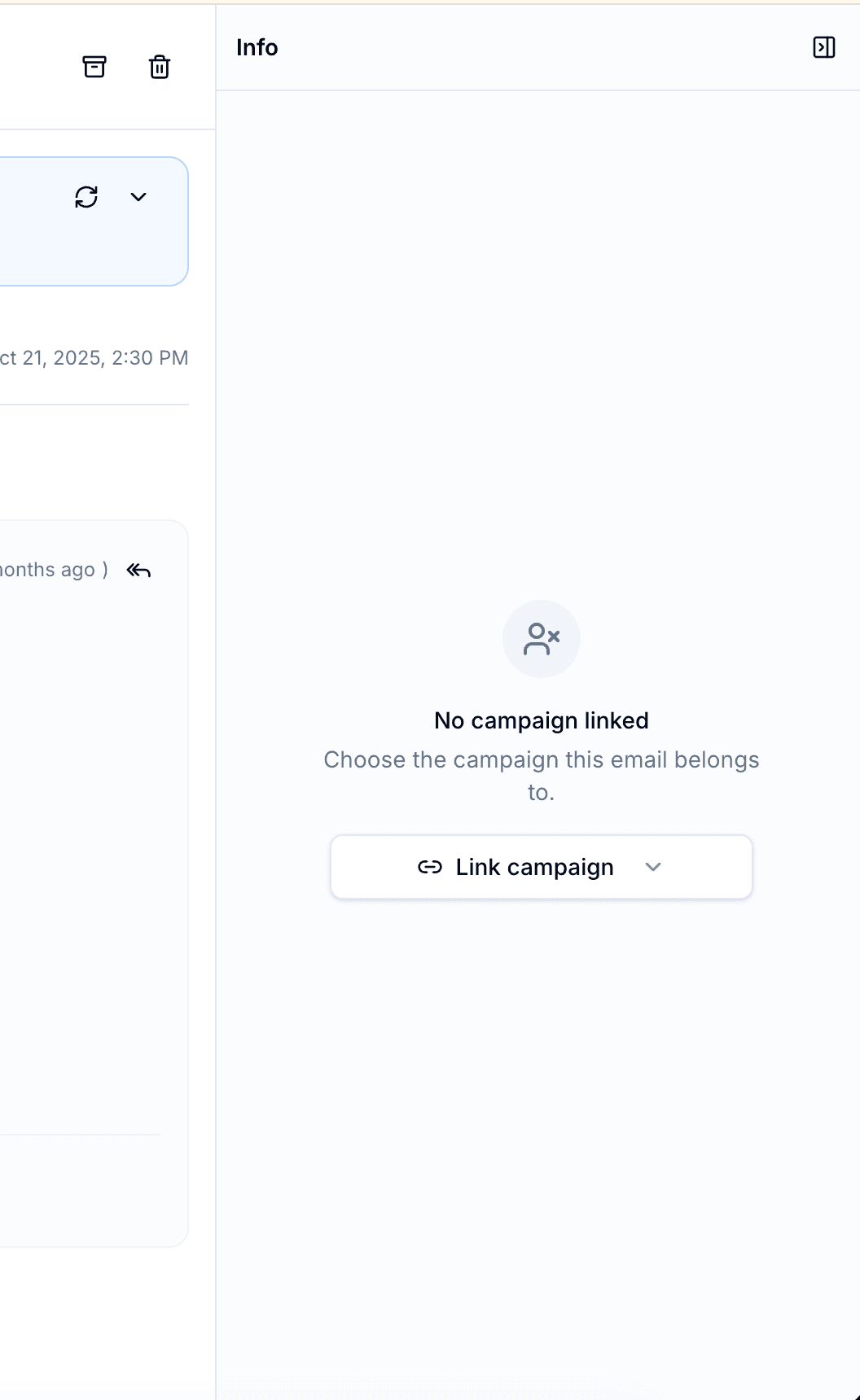
Right panel (Info panel)
When you open a linked thread, the right panel shows the influencer's data from your campaign table:
- Campaign badge — Which campaign the influencer belongs to, with a link to the campaign page
- All table columns — Every column from the influencer's campaign table is displayed (name, email, status, fee, custom columns, etc.) and can be edited directly from the inbox
- Multiple links — If an email involves multiple influencers, each one appears as a separate tab. You can add more links manually using the method above.
The panel is resizable and can be collapsed when you need more space.